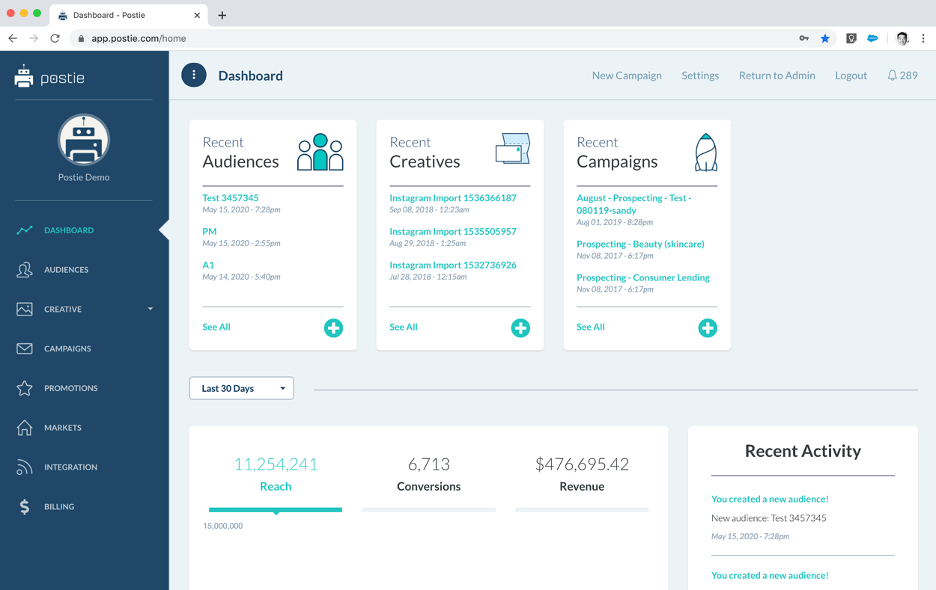
Step 1 - Go to Settings
When you Log in to your Postie account, you will immediately land on the Homepage Dashboard, where you will get a holistic view of the Postie platform. In the top right corner, click on “Settings”.
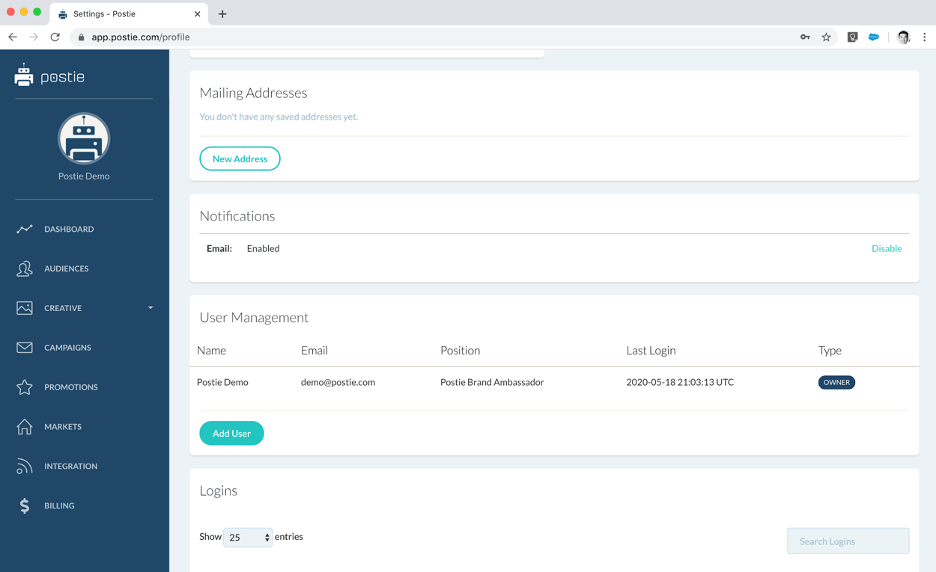
Step 2 - Go to User Management
Scroll down and find the “User Management” section. Here you can allow access to the Postie platform for as many additional colleagues as you would like. Click on “Add User”.
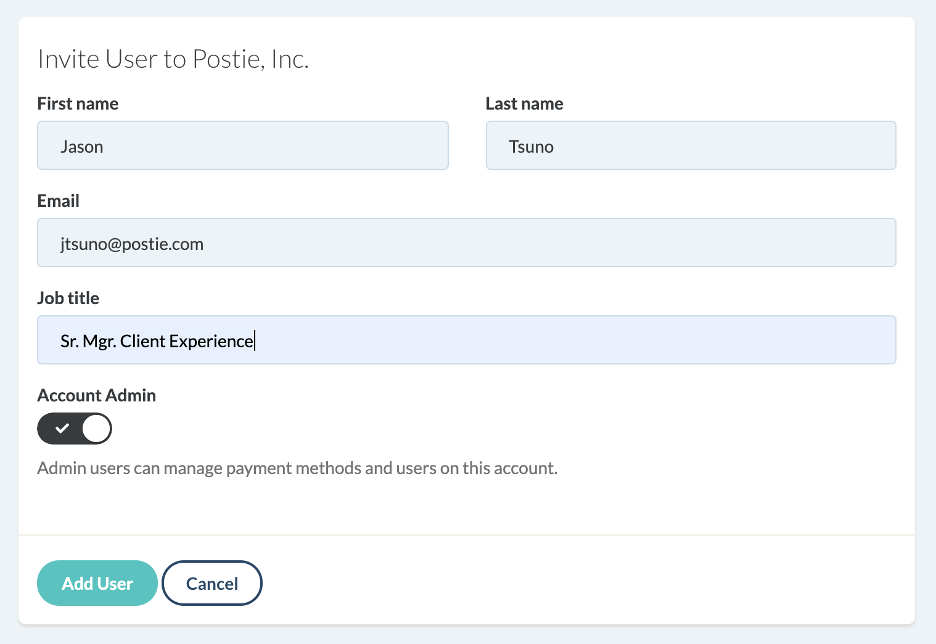
Step 3 - Input New User Information
Please provide full names, email addresses, and job titles for our records. You can also elect to turn on administrative access for each user you submit, giving them the additional authority on payment and user management (currently reserved for the Owner of the account, or other Admins). Then click “Add User”.
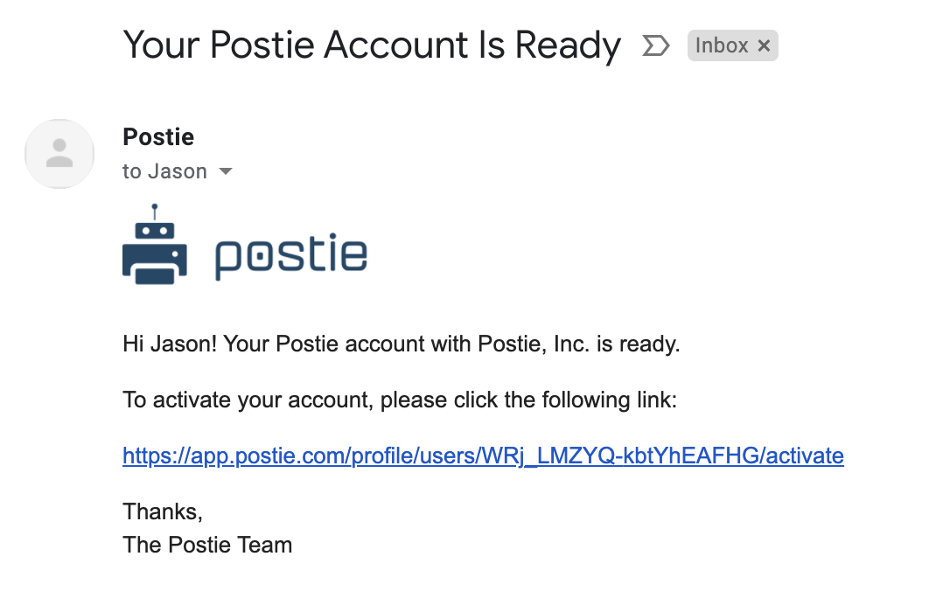
Step 4 - Activation is Required
Once the new user has been submitted, Postie will promptly send an email to that user. Before they are able to access their account, they will need to create a login and password using the link provided in their email. If they are having any trouble following these steps, contact your Postie Client Experience Manager.