
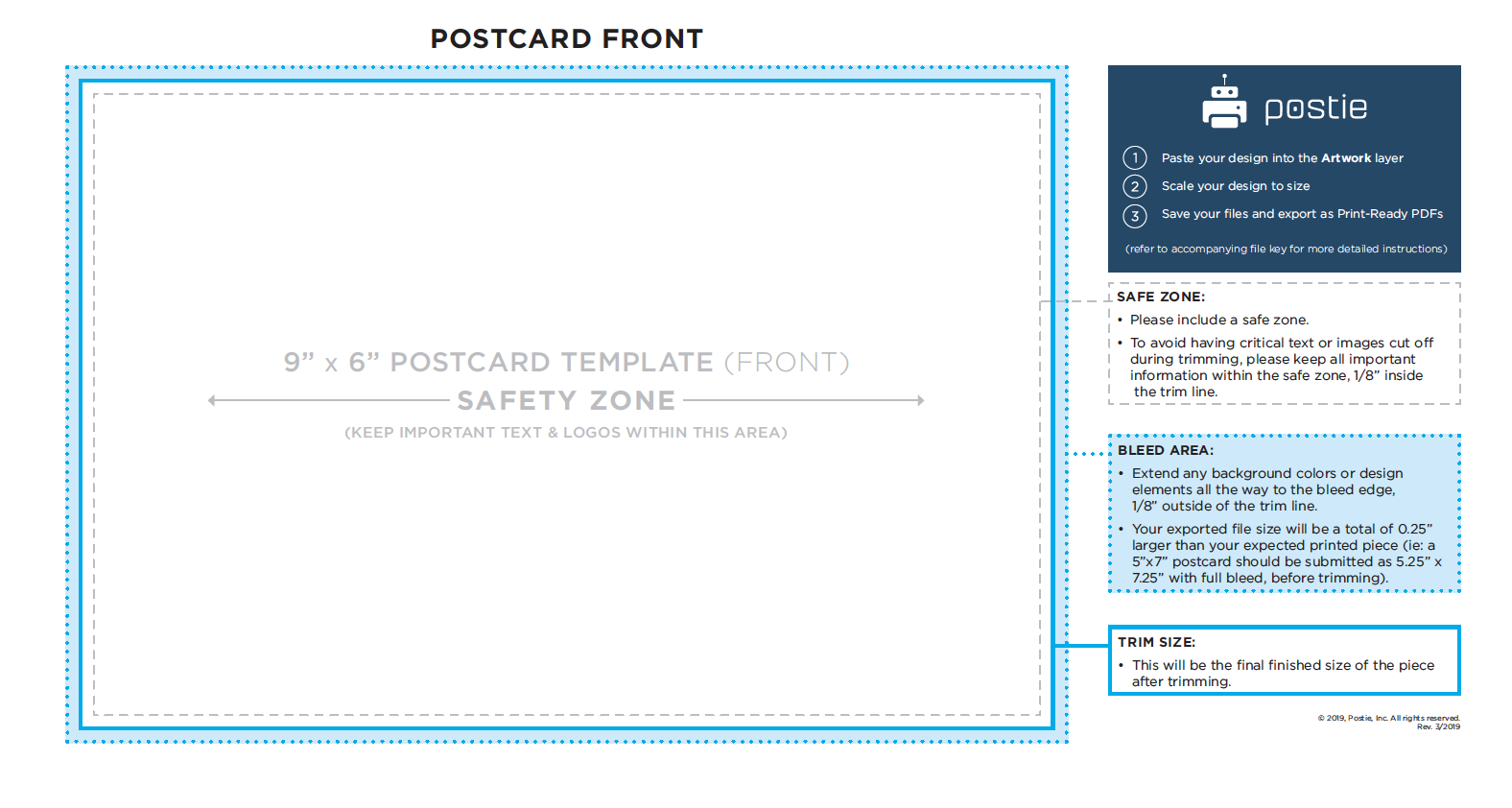
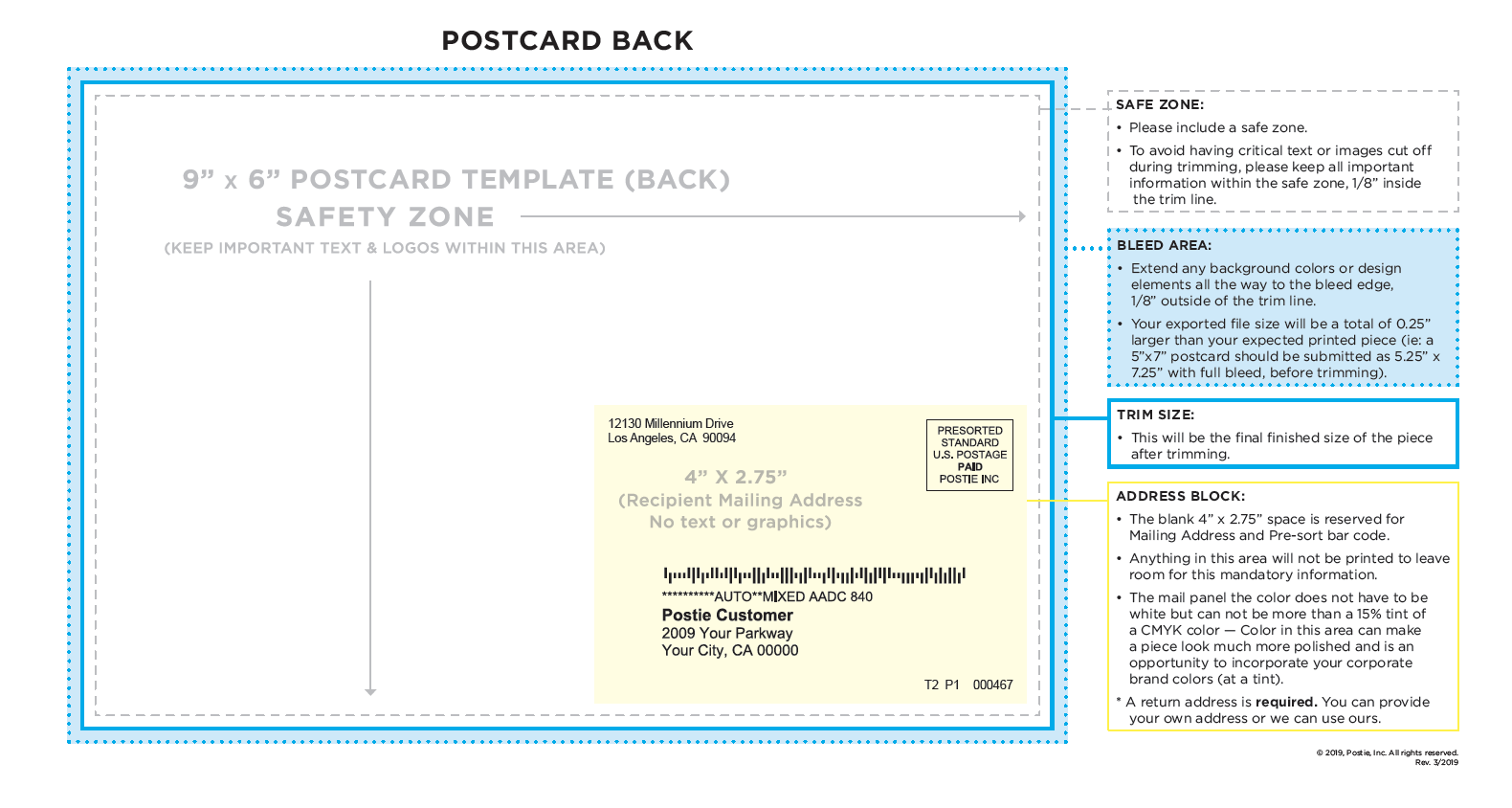
• Paste your design into the Artwork layer only.
• Do not alter the template.
• Scale your design to size. (Do not just stretch your image to fit as that may move critical content too close to the edge).
• All colors and placed art must be set to CMYK color mode.
• Do not use rich black of any kind for text- 0/0/0/100K build only.
• All placed images should be no less than 300 dpi.

• Export file to PDF (From the InDesign Menu choose File > Export...)
• In The General tab, select High Quality Print Adobe PDF Preset.
• In The Compression tab, set compression to Do Not Downsample. and compression None for all image types.
• In the Marks and Bleeds tab, turn on All Printer’s Marks, turn on Use Document Bleed Settings. Leave Include Slug Area turned off.
• In the Output tab set Profile Inclusion Policy to Don’t Include Profiles.
• Leave the Advanced tab and the Security tab unchanged.

• Lead with a Strong Call to Action – This is your driver to success - make it clear and give it visual prominence.
• Keep Messaging Simple – Keep your messaging clean and concise - less is more.
• Vibrant Imagery – Make sure you use professional, compelling imagery for your piece and let it tell the story you are trying to communicate.
• Utilize the Entire Printable Area - Follow the template and create an effective marketing piece. No need to leave large white areas for the mailing label - just follow the template guidelines and use up the space allowed for graphics and imagery.
• Proofread, Then Proofread Again - Have several team members proof content, phone numbers, website addresses and essential contact information. Print is permanent and incorrect information can be detrimental to a piece. Double and triple-check spelling, grammar, image quality and flow of layout.
• Create an Eye-Catching Piece - You have between 3-8 seconds to catch a consumer’s eye. Test your piece on team members see if your piece is impactful and the message is clear.
• Follow USPS Mailing Guidelines in the Template – Including mailing information outside of the designated yellow mailing panel area will flag USPS sorting and result in incorrect mailings.
• Check for Overset Text Boxes - The “plus sign” icon means that there’s more text in your text box than what’s showing in your design.
• File Naming - Please name your file clearly and intuitively.